
Incremental Refresh in Power BI is a powerful feature, which allows you to save refresh time, decrease infrastructure load and even cut costs. It’s not that difficult to set up and in this article I will guide you through the process.
As usual Microsoft provides us quite good documentation, and I suggest you to read it too.
Let’s say you have a huge fact table with millions of rows. Every day the new data is coming and performing a full refresh of the Power BI model becomes slower and slower. This is where incremental refresh can help you. Basically it allows you to split the data into partitions (smaller pieces) and refresh only latest partitions, while keeping older data untouched. Sounds nice!
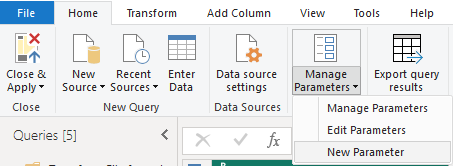
First thing we need to do is to set up datetime parameters, which we are going to use as filters on top of our fact table. Let’s open Power Query – Manage Parameters – New Parameter:
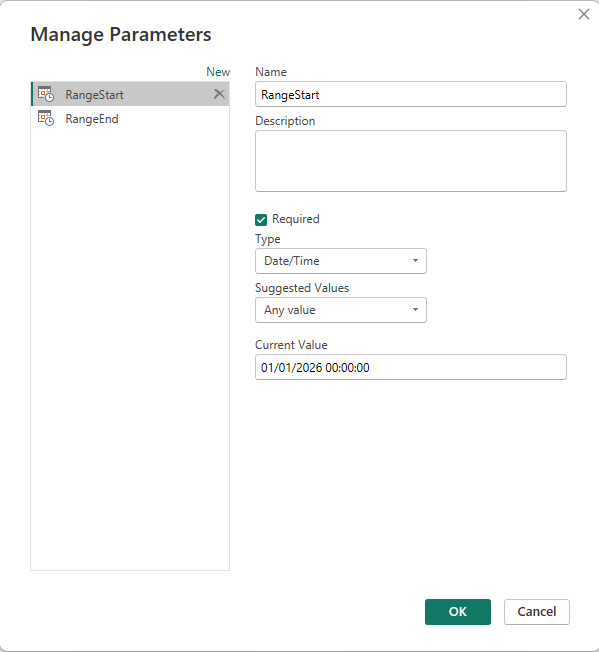
You need to create 2 parameters: RangeStart and RangeEnd. Both should be set up to Type = Date/Time:
As those parameters are formatted as Date/Time, you need to be sure that in your fact table you also have a column in such a format, as we will need to apply that parameters as filters. Select the date/time column in your fact table – Date/Time Filters – Between. There instead of selecting date/time manually, you can use the parameters created.
Important: you should select “is before” for RangeEnd parameter. If you select “is before or equal to”, incremental refresh won’t work. The last second of today is treated as both end of today and start of next date. As a result a row with such timestamp will be stored in two different partitions.
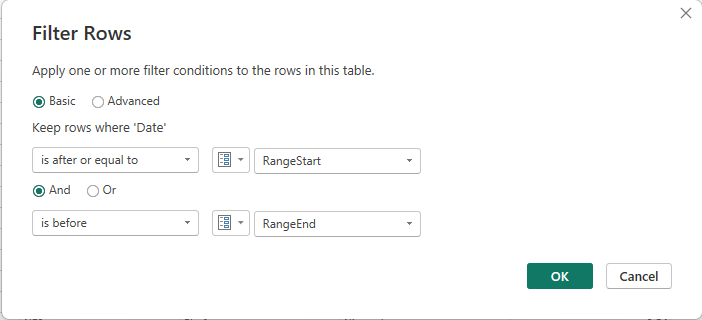
Every time data is refreshed, the query returns only rows within the refresh period defined. You might think – but those dates we have defined are not dynamic and tomorrow I need to shift RangeEnd parameter one day further. Well, you are right, but those parameters we’ve defined are just a starting point, needed for further set up.
Next step is to set up refresh policy on the table. Right-click on the fact table and select “Incremental Refresh”. A new window will pop up:
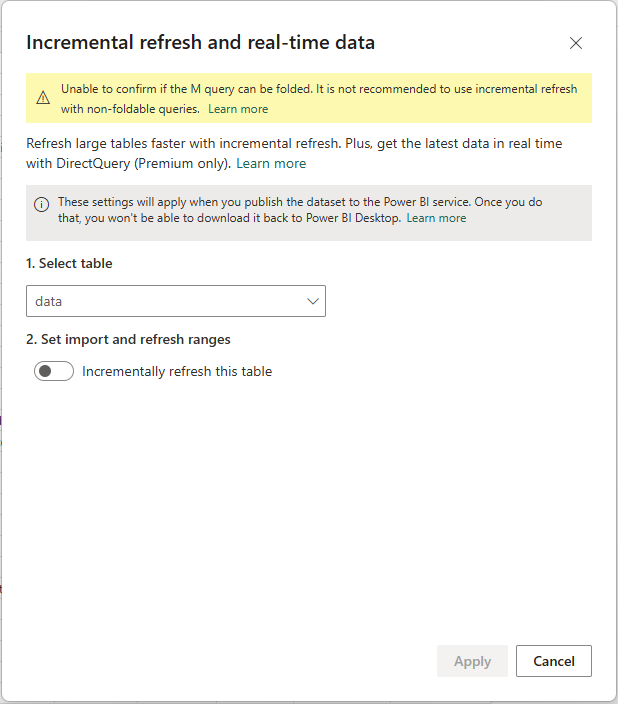
Turn on the “Incrementally refresh this table” option.
Important: with no Parameters set up and used as filter on the table, you won’t be able to active that option
Once you activate that option, you will need to do the proper setting, which depends on your needs. Let’s say I would like to archive data for the past 2 years and refresh only data for the last 2 days. As today is April 13th, my set up will look like that:
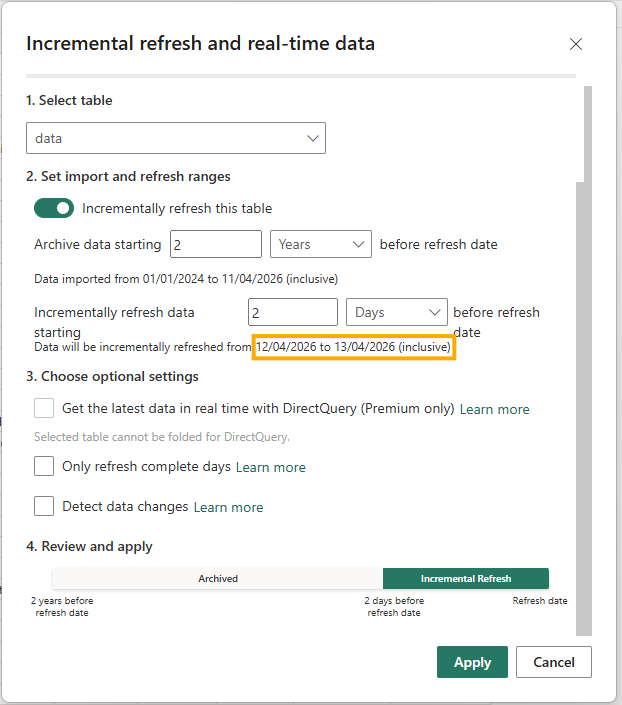
As you see the data, which is going to be incrementally refreshed is for yesterday and today only, which means that the rest of the data will not be refreshed. Well, it will be refreshed just once – when you just set up incremental refresh and performing an initial refresh in the BI Service, this is when basically data is pulled into the model.
There are additional options, which I have not selected in my example, keep in mind that they are optional and I suggest you to read more about them in official Microsoft documentation:
- Only refresh complete days – if you select that option, you will tell Power BI that you want to refresh only days, which are finished. That will result in today’s data not appear in reports, sourced from that table.
- Detect data changes – in brief: Power BI checks if data in the selected date range changed and if not, it’s not going to be refreshed. As in example above if data for April 12th did not change, it’s not going to be refreshed. That will save time and computing resources.
What next? Publish your report into Power BI Service. In my example raw files used as source for fact table are stored in Sharepoint folder. So after publish, go to your model settings and connect to your source using: “Data Source Credentials” option:
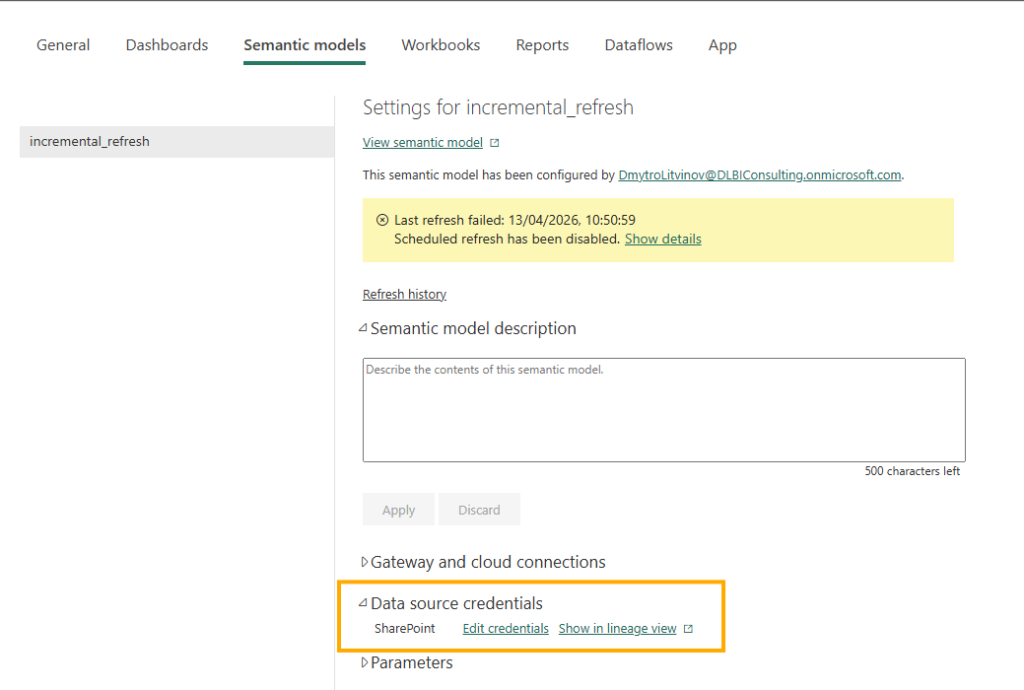
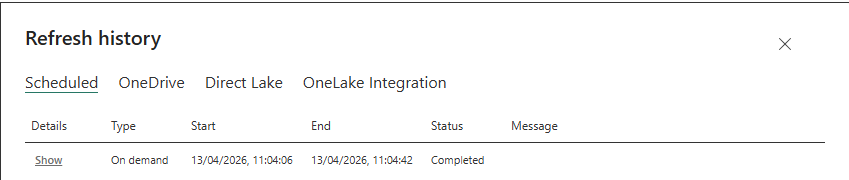
Now you are ready to perform refresh of your semantic model.
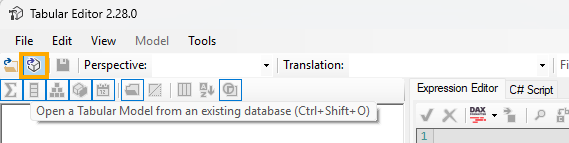
How to check that incremental policy is working fine? For that you need to use separate tool, for example Tabular Editor or SQL Server Management Studio. I’ll go with the first option. Download and install Tabular Editor (I use free version 2), which you can get here. Open it and navigate to the option – Open a Tabular Model from an existing database:
In the pop up window you need to provide Server and Authentication method. To get server name – go to the Workspace in Power BI service, where your model is stored – Workspace Settings – Workspace Type. There you will find Connection Link:
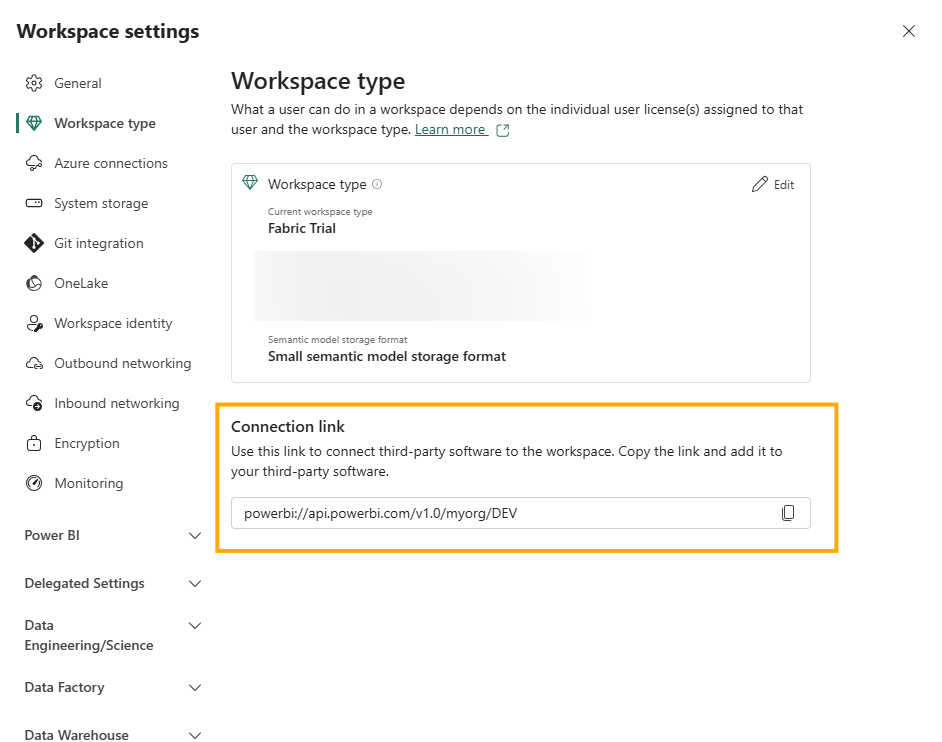
Important: this link is available only for Power BI Premium capacities and higher. Pro users indeed can’t access it
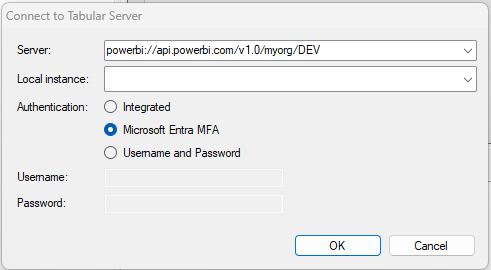
Once you are connected, you will be asked to select database (data model), so select the one you need and find the table, on which you have applied an incremental refresh. As you remember I have archived data for the past 2 years and set up incremental refresh for the last 2 days. Expand the table and you will see object called Partitions:
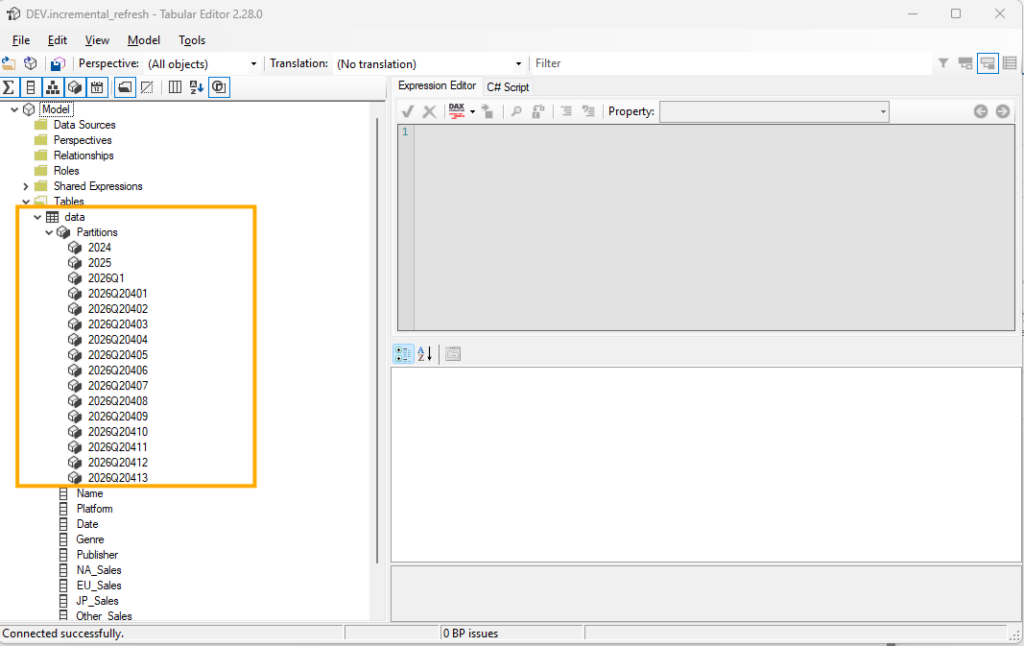
By default if incremental refresh is not selected, you will have just 1 partition, which is refreshed when refresh is performed, but with incremental refresh you can see how data was split into partitions. Those were created automatically by Power BI Service and as you see they were also pretty nicely grouped into years and quarters to avoid having a long list of dates. Actually you can create partitions by your own and change the default set up, but that’s a topic for a separate article.
Just keep in mind – if for some reason you need to re-process data for some specific time period, you don’t need to refresh all the data, you can process only specific partiton and save a lot of time and resources.
Drop a comment below if I have missed something, happy to discuss.