
Overview
In the world of technology, when you are working on some product you naturally have to go through a couple of stages. First you develop it, next you test if it works. Then you repeat those two steps before you think that the product is ready and finally you consider it ready to release to the world. The final stage usually is not the end of the product lifecycle, because you might want to update or optimize something, implement a new feature or someone will discover a bug that has to be fixed.
Power BI gives you the tools to put this into practice — Git integration for source control, which we’ve already discussed in the article here: link, and Deployment Pipelines for promoting content across environments — and in this article I’ll show you how to set up that second piece.
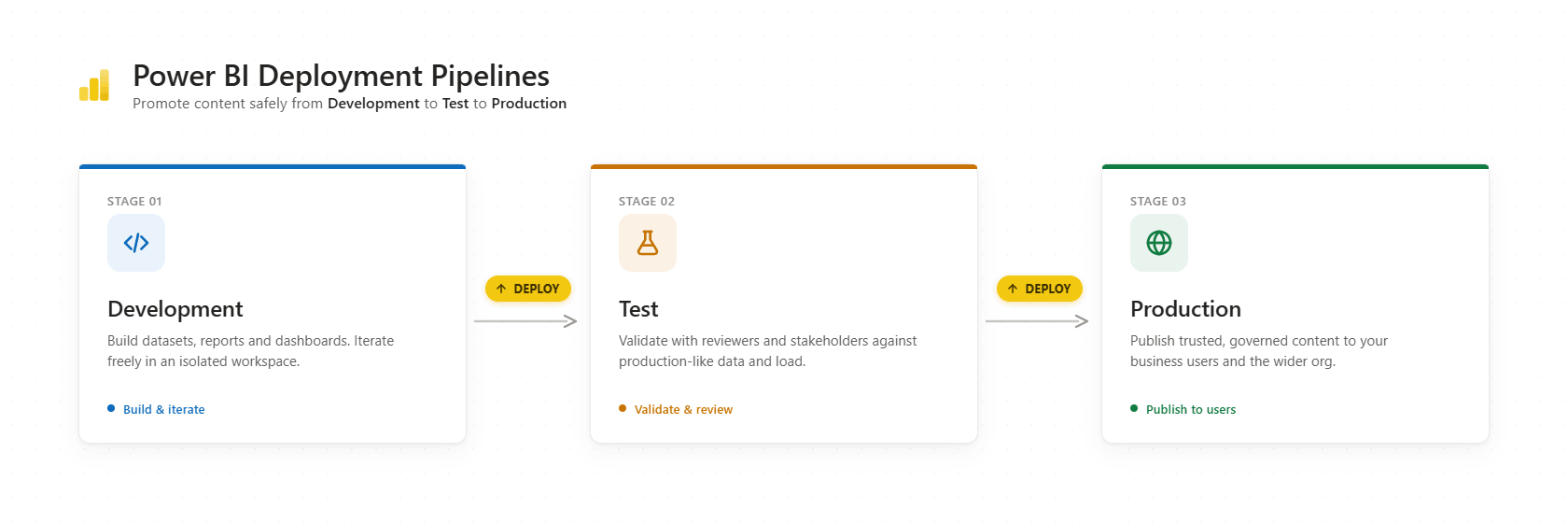
- Development (DEV) — this is where your prototypes live. You work on a new report page, new metrics, or a new semantic model and deploy them to DEV. Usually, when an organization stores data in a database, there are DEV objects that contain a small amount of data or just dummy data.
- Testing (TEST) — this is where tests are run against larger volumes of data. It’s also where you can test the Power BI app and share it with a group of users involved in testing.
- Production (PROD) — after you’ve developed, tested everything, and decided your report is ready, this is where you deploy the final version.
Example: say you have a fact table in production with 10 million rows. You don’t need all of that to build a new report against it — especially in import mode. Organizations that store data in a database typically keep separate schemas following the same DEV → TEST → PROD pattern: same structure, just different volume (or different data) in each. During development your semantic model connects to the DEV schema, so instead of 10M rows you import maybe 50k. When you promote the report to the Test stage, a parameter rule on the pipeline rebinds the connection to the TEST schema — and the model picks up TEST’s larger, more production-like dataset. The same rule swaps it to PROD on the final deploy.
Step 1 – Creation of Deployment Pipeline
Important notes: Deployment Pipelines in Power BI are available with Premium, Premium Per User (PPU), or Fabric capacity — not on a Pro-only license. Only a workspace admin can assign a workspace to a pipeline, and a workspace can belong to only one pipeline at a time.
Now let’s go to Power BI Service, where I do have a PPU license. I have created a new workspace, named it DEV, and deployed my semantic model (with a report) there. Next I need to create two more workspaces – TEST and PROD. Basically the deployment process here is cloning content from one workspace to another: dev-test, test-prod. You can create more workspaces if needed and deployment pipeline can have between 2 and 10 stages according to Microsoft Docs, but standard is 3, as mentioned earlier.
Inside my DEV workspace on the top right ribbon I can see an option: Create deployment pipeline
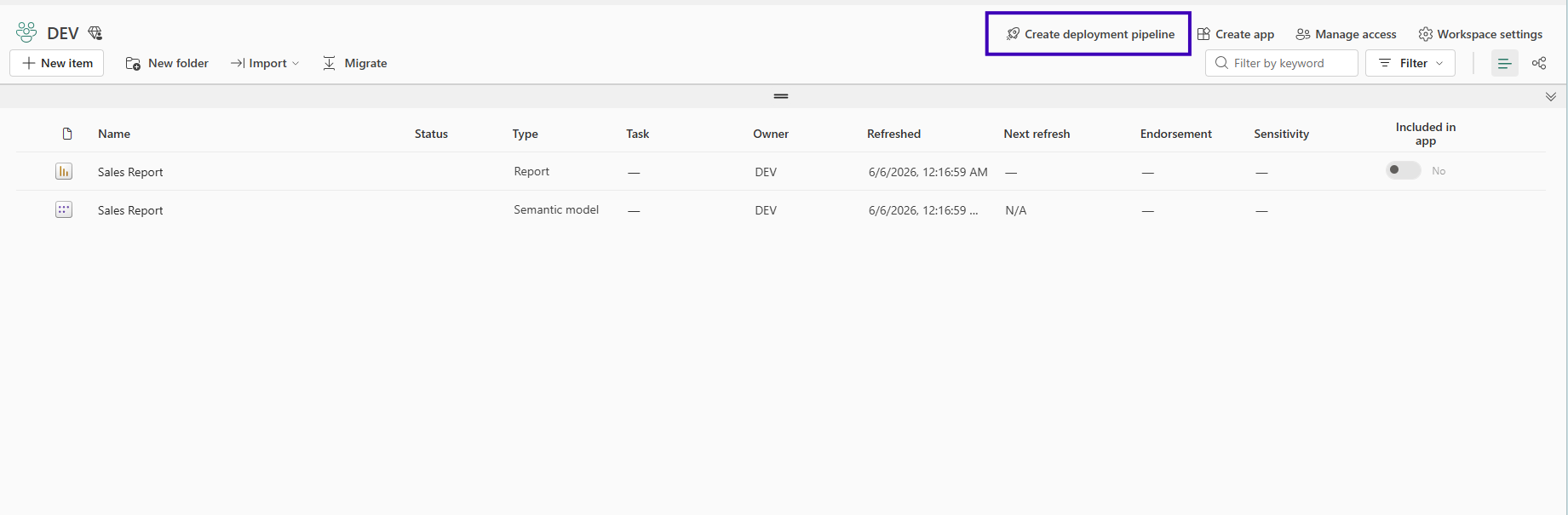
Or you can click on the “Workspaces” and there you will also see an option to create it:
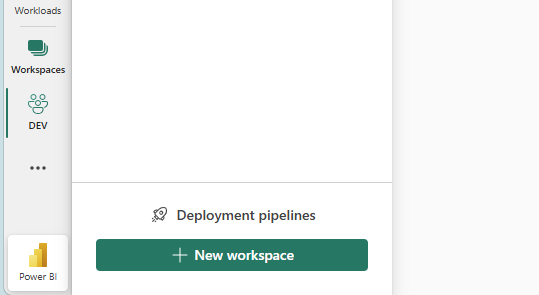
No matter which option you select, you will land on the same next page:
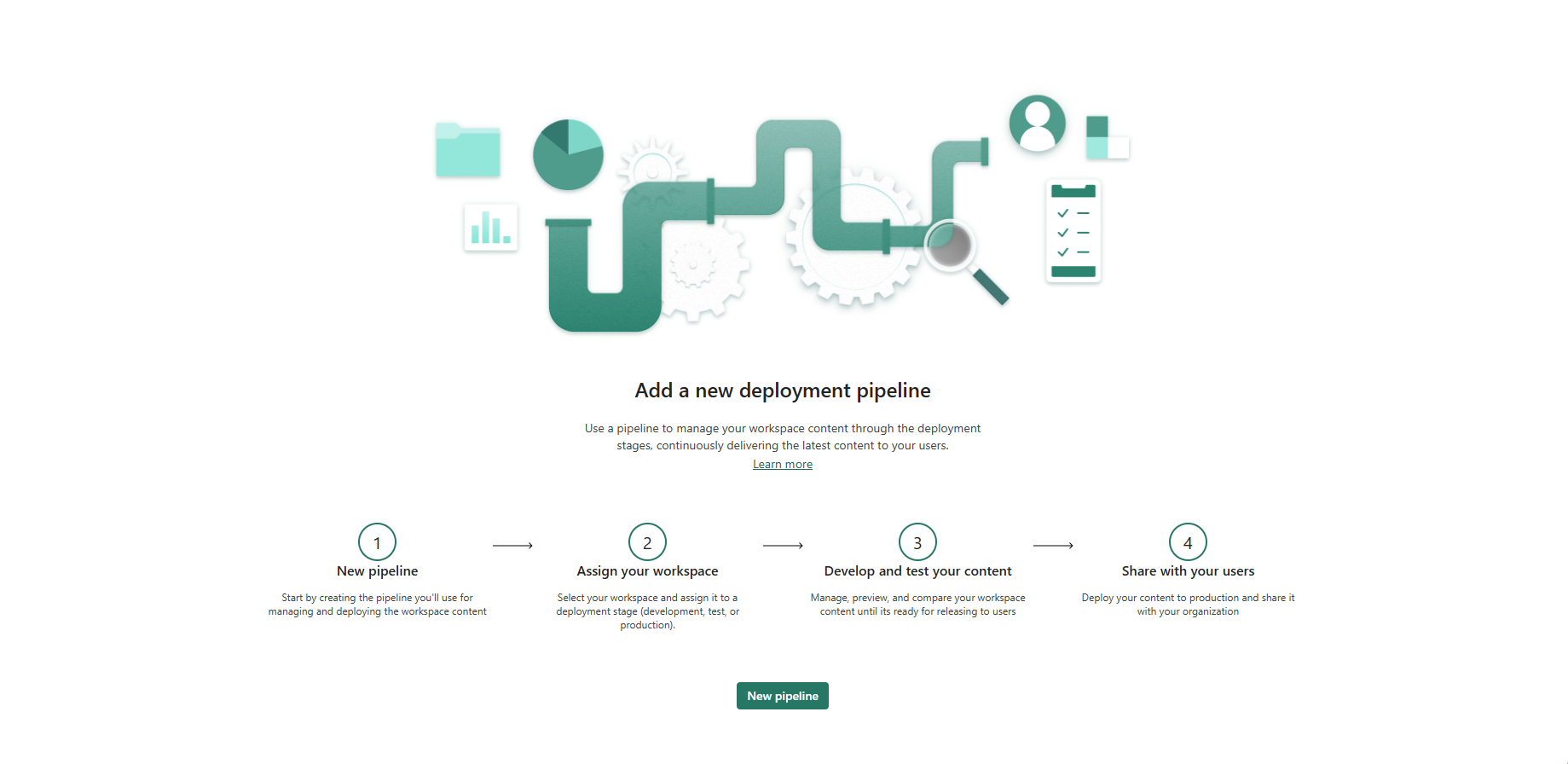
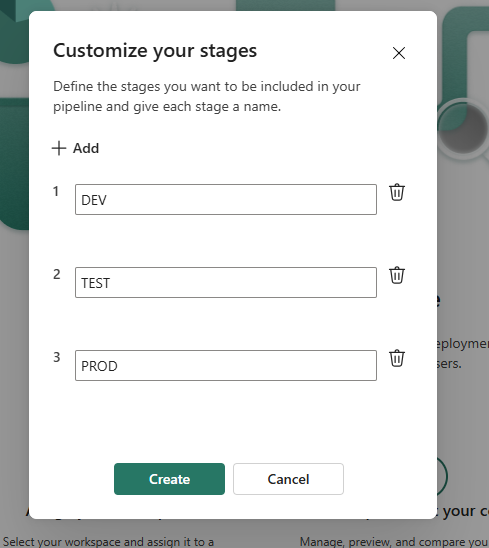
Click on the green button “New pipeline”, name it the way you like, add a description and click “Next”. In the next window you will have the ability to customize your stages. By default the 3 stages are already created, I just adjusted names to shorter ones and clicked “Create”:
Now you have the option to assign workspaces to the stages. As I have already created all needed workspaces, I just select them and click “Assign a workspace” for each.
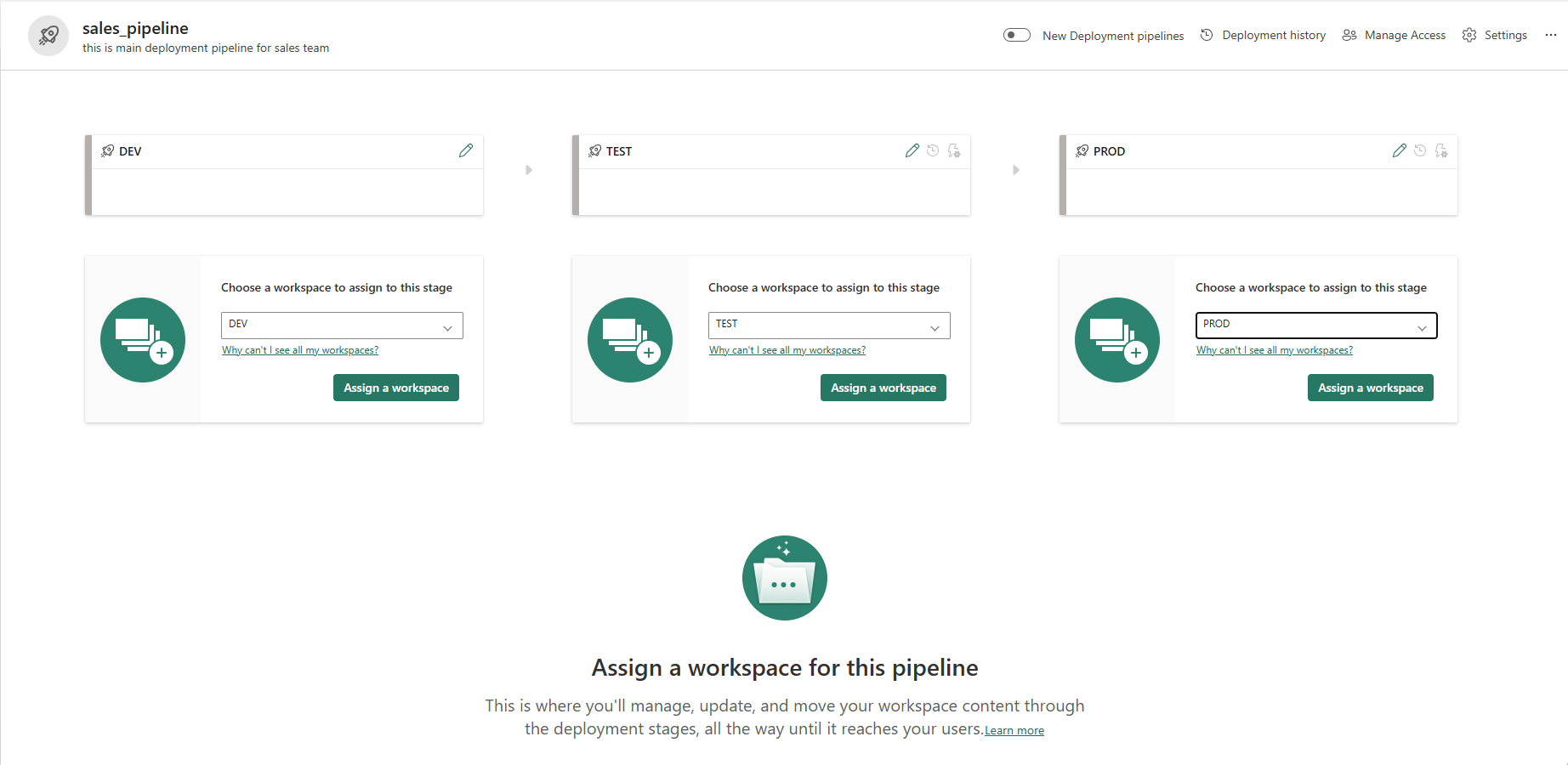
Note that there is a toggle button in the top right corner to switch to “New deployment pipelines”. I personally prefer the old view, but try both to find out what is more suitable for you. Additionally as we have assigned description to the pipeline before, you can also assign one to each of the stages.
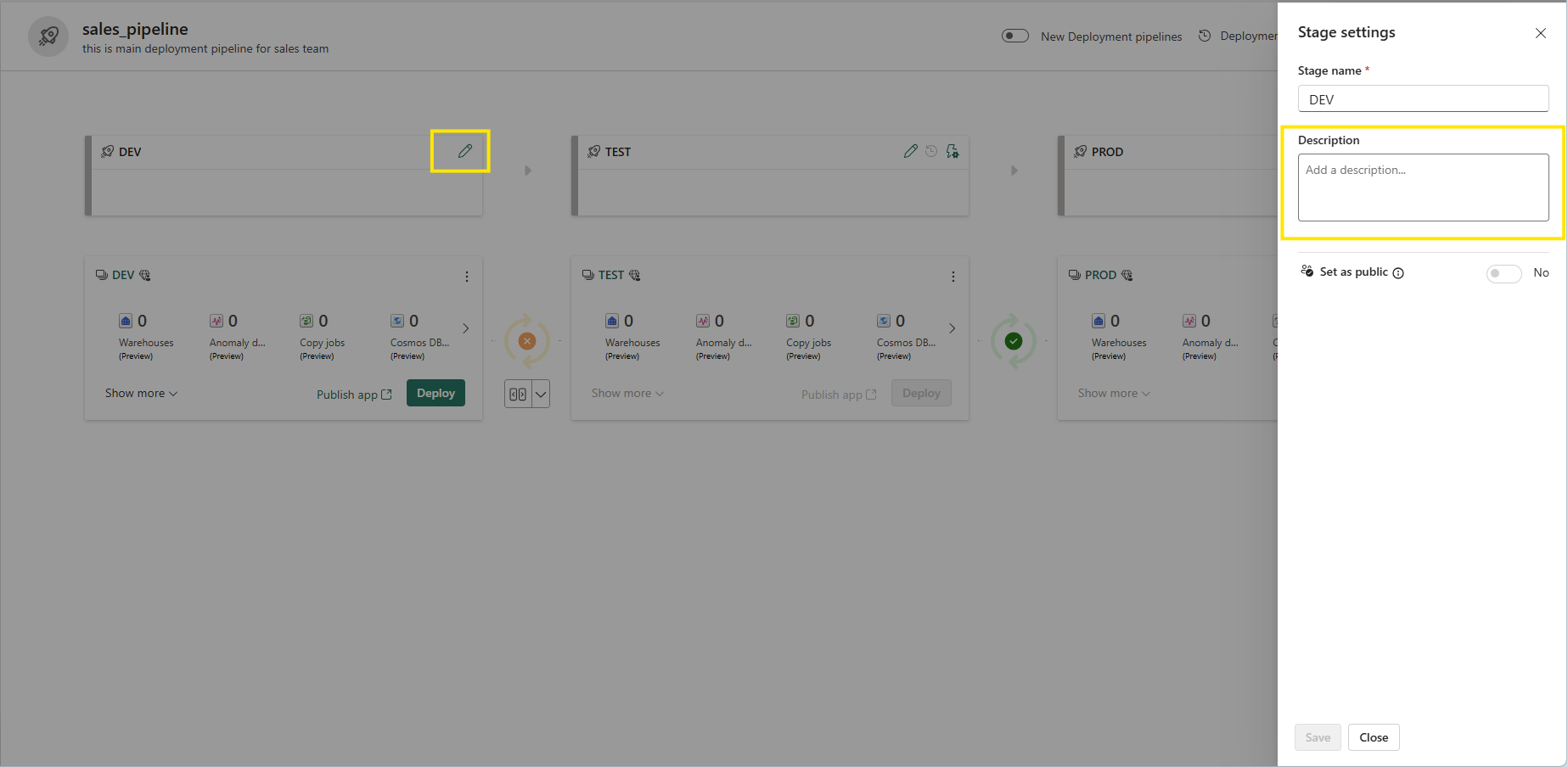
In the picture above you can also see that there is a toggle button “Set as public”. By default this option is activated on the last stage of the pipeline, but it can be activated or deactivated at any stage. Well, let me try to explain what it means: usually if we want users to consume our reports, we have to give them as at least Viewer acess to the PROD workspace. So we have developers assigned to the workspace and users, but we don’t want users to have access to our deployment pipeline, this is why we have to mark that stage as “public”, meaning that if a user does not have access to the pipeline itself, they won’t see the pipeline it in the PROD workspace.
Step 2 – Deployment
In the picture above you can see that between stages there is a separate small section: a box with arrows and a circle with arrows. The box with arrows allows us to compare objects between stages (workspaces), and the circle arrows indicates if there are differences between them. When I click on that compare box, I see that my sales report and semantic model are actually two objects that exist in DEV, but are missing in TEST.
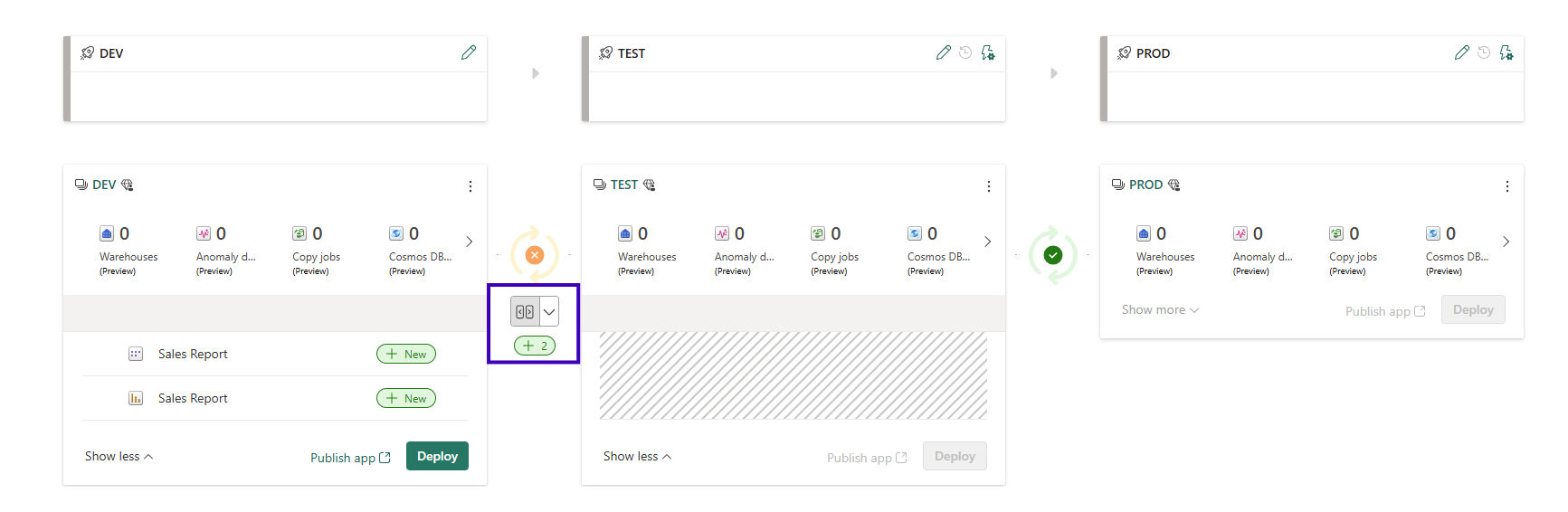
I consider those objects ready for testing. Let’s assume that there is a team of testers, who have access to the TEST workspace and who are responsible for testing. So I need to select those two objects and click “Deploy”. You will see the next window, where you can add some notes related to deployment. I will leave a note for the testing team that this is the initial deployment of the new report and model. Additionally there is an option selected to continue deployment even if some items fail. Let’s leave it active.
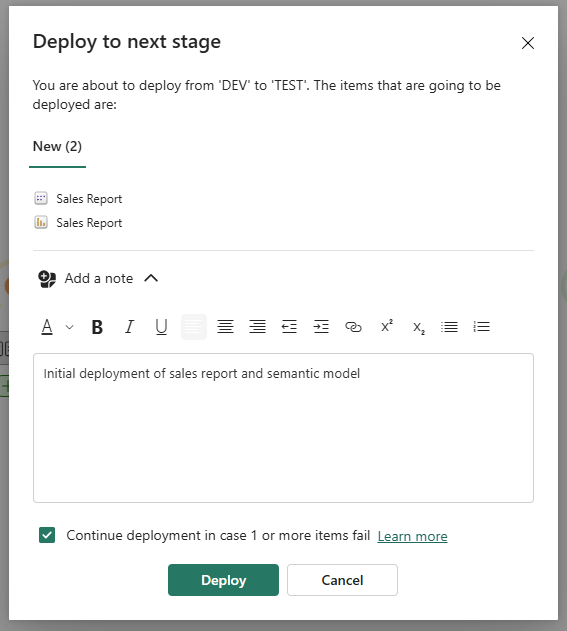
After clicking “Deploy”, you will see that the content you’ve selected is being copied to the workspace.
Once it’s done, the deployment pipeline will re-run the comparison between stages. And you will see that your content is ready to be deployed to the next stage – PROD in my example:
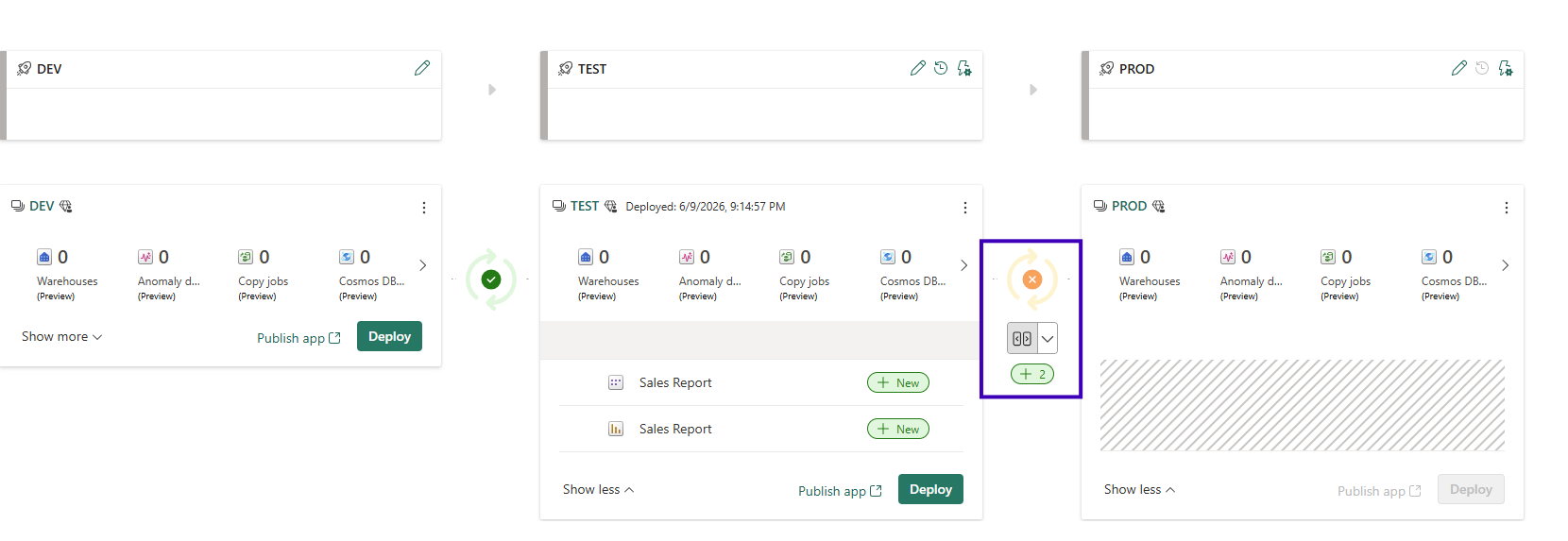
Let’s hold on for a moment. For this guide I developed against a small set of dummy .csv files, but in a real project your source would almost always be a database — typically DEV / TEST / PROD schemas with the same structure and different data. So picture it that way from here on. During development my semantic model was connected to the DEV schema, with just enough data to build and validate the report. Now that it’s deployed to TEST, the model is still pointing at the DEV schema — deploying copies the report and model definitions, but it doesn’t repoint them at the data. I want the testing team running their tests against the TEST schema, which holds a larger, more production-like dataset. So how do I switch the TEST stage to read from TEST instead of DEV? That’s exactly what deployment rules are for.
Step 3 – Deployment Rules
You might have noticed that the TEST and PROD stages have two more icons comparing to DEV:

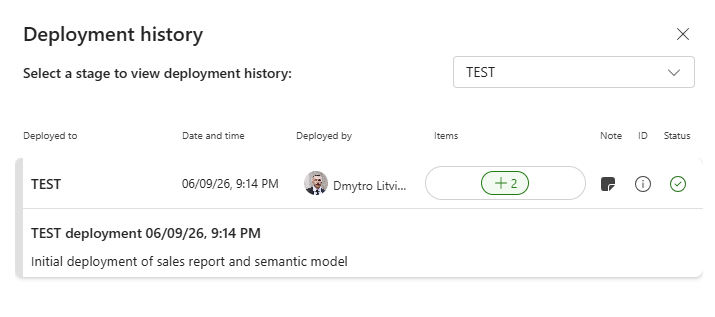
- The first one is “Deployment History”, where basically the history of deployments is stored. That’s why I’ve left a comment during the deployment from DEV to TEST, so it’s easy to track what was done and when:
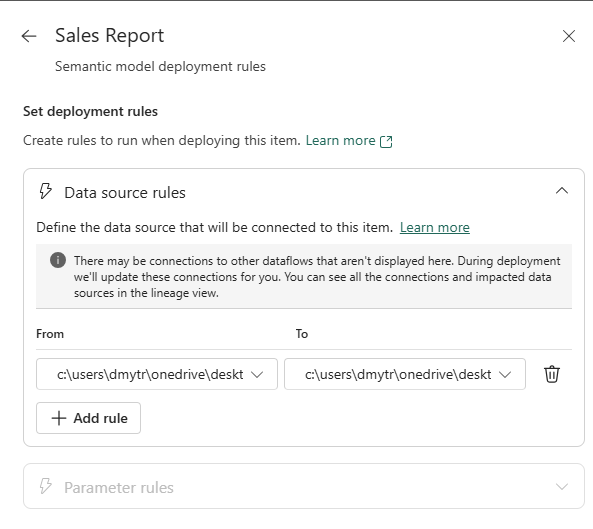
- The second is “Deployment Rules”, the place, where we can change parameter rules and data source rules. This is where the magic happens, but we need to set it up. So what’s the difference between those two?
- Data Source Rules. Use these when the connection is hardcoded in the model — defined directly in Power Query, not through a parameter. A data source rule rebinds that connection for the target stage: for a SQL-type source you point it from the DEV server/database to the TEST one, and on the next deploy the model picks up the new connection. One caveat worth knowing — data source rules are connector-dependent. They’re designed around database sources (server + database), and not every connector is supported; for file or web sources you’ll usually fall back to parameter rules instead.
- Parameter Rules. This is where you can change parameter values, of the parameters you’ve created in Power Query. As you can see I have that option greyed out, as I don’t have any parameters in my semantic model, but in real life when the source is a SQL database, it’s a good practice to create parameters for the server name, database and schema. So as DEV stage is connected to DEV schema, this is the place where you can change the parameter for schema to TEST one. From my perspective, parameters give you more control. Drop a comment under this post if you agree or think otherwise.
Important Note: when we deploy content between stages, we don’t deploy the data itself — only the metadata, i.e. the definitions of the semantic model and report. So if you add a new table to the semantic model and publish to DEV, that table will be empty until you refresh the model. A full refresh handles both cases: for an imported source table it pulls the data from the source, and for a calculated table it recomputes it afterwards. You can run that refresh in the Power BI Service (or, if you prefer, over the XMLA endpoint with a tool like SSMS). The same applies at every stage — once you deploy the model to TEST, you have to refresh it there too. One thing to watch on the first deploy to a new stage: you’ll usually need to set the data source credentials before the refresh will succeed. Until the model is refreshed, the report will show that the table has no data and needs to be refreshed.
Once everything is tested, it’s time to deploy content to Production. After content is there, you need to set up deployment rules for PROD stage as well. The good news is that you do it just once and on the next deployment those rules will be executed automatically.
Summary
Well, basically that’s it. If you want to make a change, the process would look like: create a feature branch in your local repo, make the adjustments, stage, commit and push changes to GitHub, let someone review your pull request and then merge your branch into main. As you’ve already set up source control in your DEV workspace you need to sync the changes there with those in the repo. Next go to deployment pipelines, choose the content you’ve adjusted and deploy it to TEST, where the testing team picks it up, runs tests and once everything is confirmed, deploy it to PROD for the end users.
Thank you for your time and I wish you all the best!
Great content! Keep up the good work!