
Overview
Just couple of years ago version control in Power BI was quite a challenge, lucklily for us – that times are gone. It’s hard to imagine any serious project without Git being an integral part of it. Even if you are solo developer, who does not cooperate with others much, it’s worth to have version control being set up.
Git allows you to:
- Track every change made
- Work on multiple versions at the same time
- Revert to previous versions if needed
- Collaborate with others without overwriting each other’s work (sometimes that still happens)
Below you can find an image with the sample workflow, which shows you how the work of two developers is being brought to the final Power BI Report.
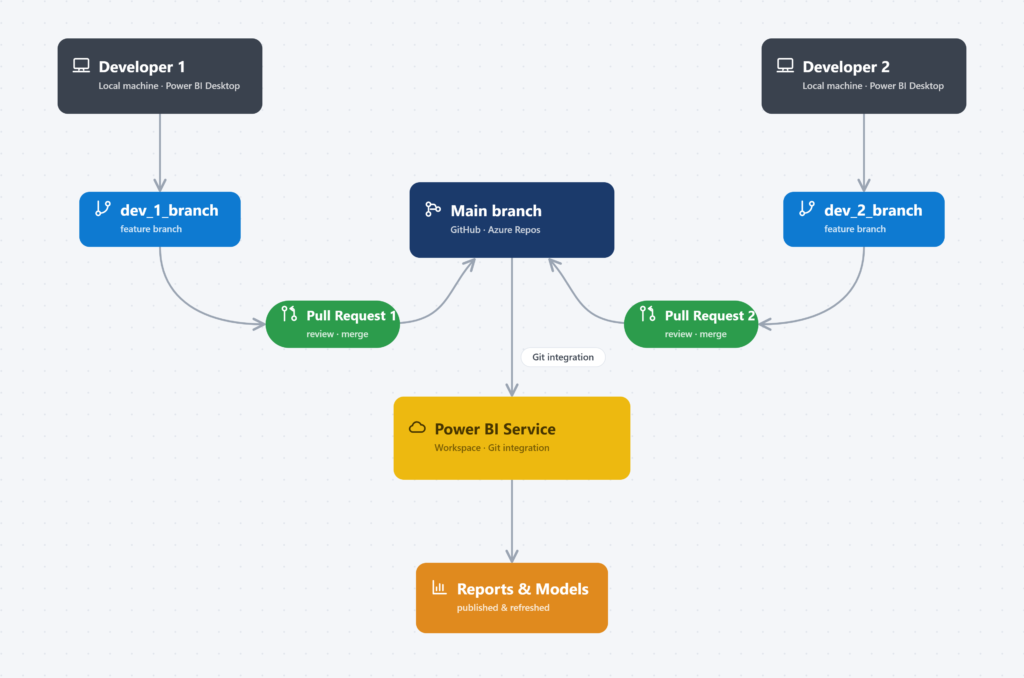
Important note: Power BI currently support GitHub or Azure DevOps as Git providers.
I hope at this stage you understand the overall concept, so let’s move forward – how to actually integrate Git.
First thing you need to do is to install Git itself. You can do it on the official webpage: https://git-scm.com/install
Git is the tool, which is being run on your local machine. It tracks changes and handles everything related to branches. Next what you have to install is the code editor. I prefer Visual Studio Code (VS Code), which you can get from here: https://code.visualstudio.com/
Repository set up
Once you have all the needed tools installed, it’s time to set up your repository. In my example I will select GitHub as the provider. You need to create an account there (it’s free) and once you are there – click on your profile on the top right corner and next – “Repositories”
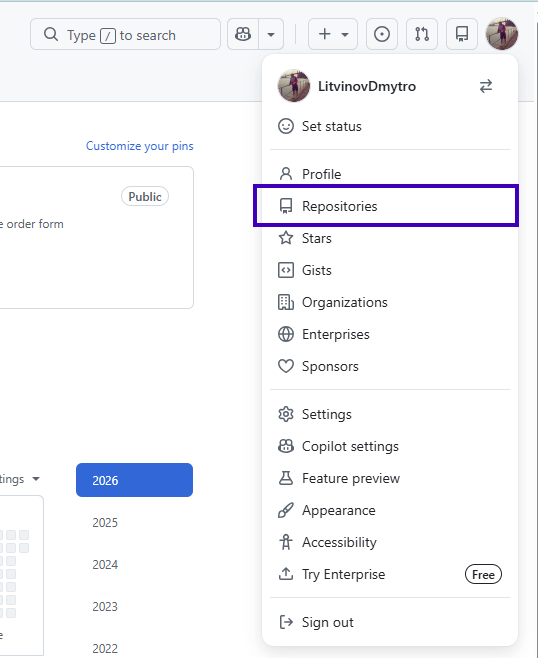
There you will see an option to create your first Repository – just click that green button “New”

Next step is to do the basic set up. Name your repo the way you want, write a short description, specify if that’s a private one or public (if you want to share your code with anyone). I also suggest you to toggle On the “Add README”, which is essentially the front page of your repository. It’s a good practice to include it to let other people with whom you collaborate know – what is the purpose of that repo, how to use it, etc. If you work on multiple projects solo, it’s also worth to keep those notes just for yourself.
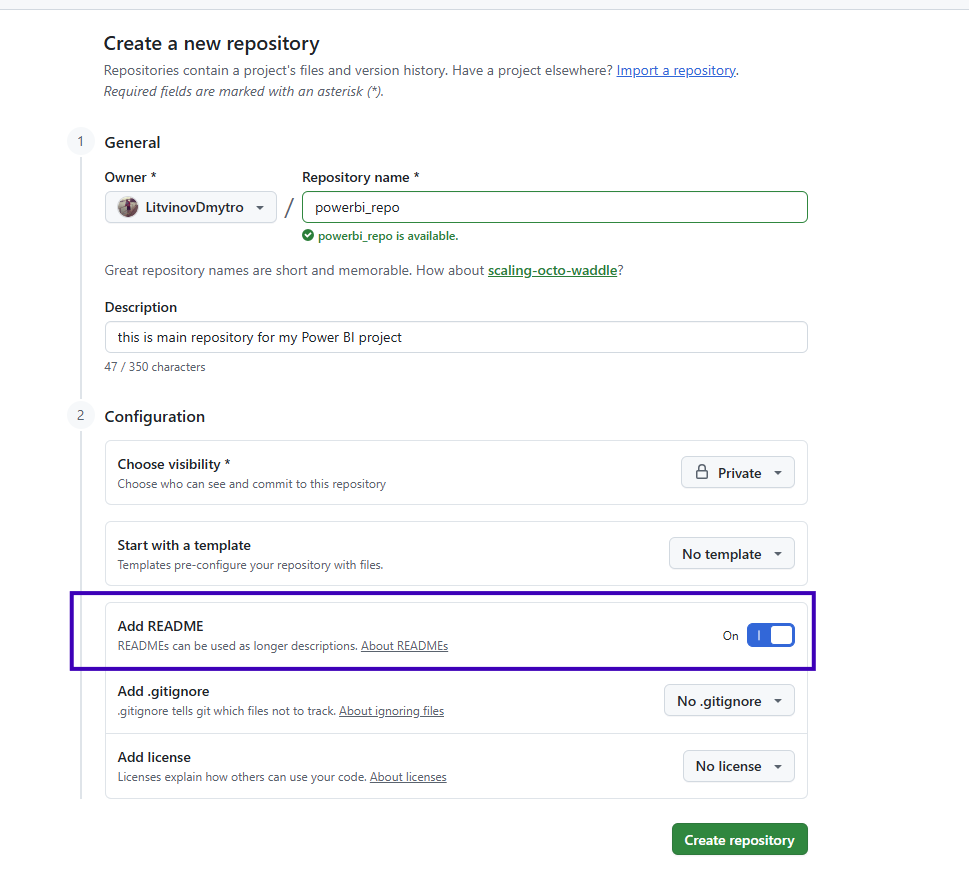
Click “Create repository” and you are all set up with the space, where you can store your code. You should be able to see something similar:
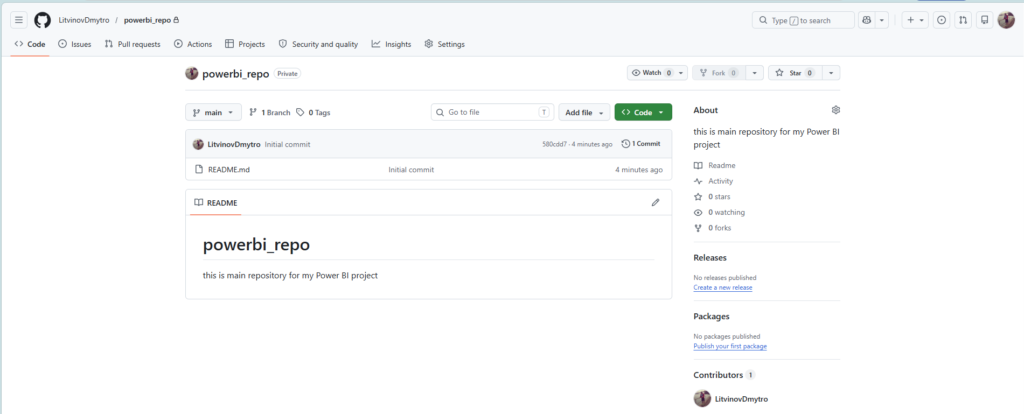
Finally we need to move our code to the repository. Let’s imagine that we have a Power BI report. To make it work properly, we have to save it as .PBIP with PBIR metadata format turned on. I’ve written more about Power BI formats in another article: PBIX vs PBIP vs PBIR – Power BI File Formats
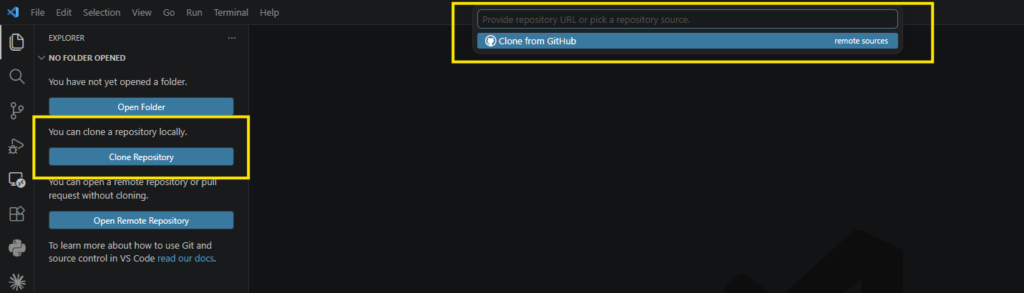
Open Visual Studio Code and click on the first icon on the ribbon located on the left side – Explorer. You will see there 3 options, but we are interested in “Clone Repository”, which will clone our newly created empty repository to our local machine.
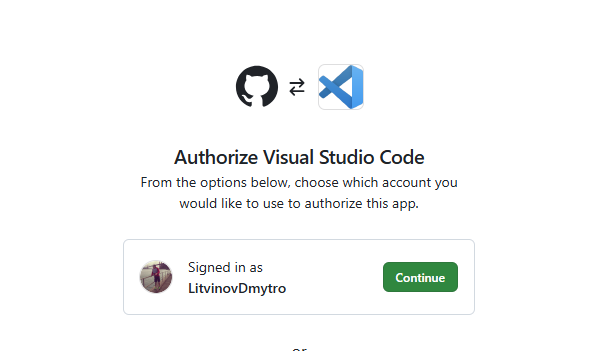
You will need to sign in to GitHub to authorize VS Code.
Once you are done, go back to Visual Studio Code and click “Clone Repository” again. This time you will see that repository you’ve created available for selection.

When you choose a repo, you will need to select – where it will be stored locally on your machine. I’ve created a new folder and named it: “Power BI Repo”
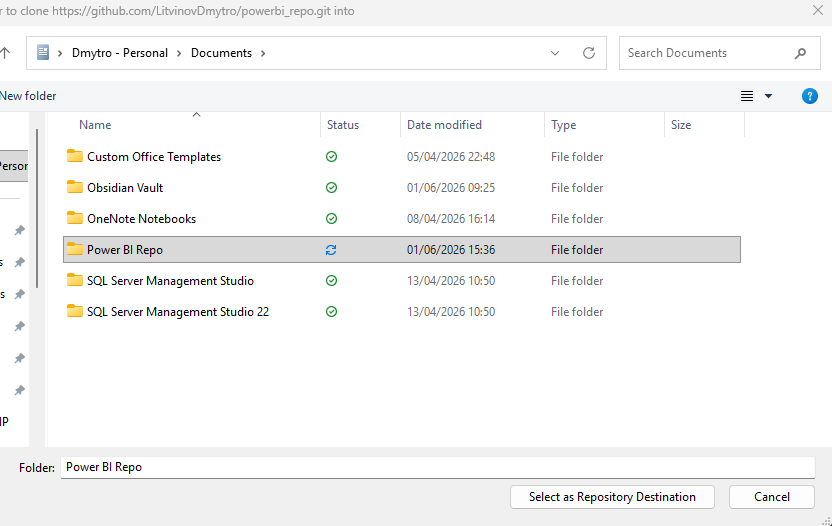
The last thing we need to do is to move to that folder our Power BI project. You have to bring every item which was created once you saved your report as .PBIP, including .gitignore
While we were initializing repo in GitHub we had an option to add it, but we did not because from the dropdown menu there were no options to select for us specifically for Power BI. Once we create .PBIP project in Power BI, it generates .gitignore for us automatically. We need to add at least two things to the file, if they are not added by default:
- **/.pbi/localSettings.json
- **/.pbi/cache.abf
The first file contains personal local settings for Power BI Desktop, we don’t want to store it in repo and it has no value for repo contributors. What is more, it can even cause troubles with merging later. Second file is the cache, which is stored locally for the current state of the semantic model you have. We also don’t want to bring it to repo due to couple reasons – it can be huge, like many gigabytes of data and it might not work after something is getting changed in the model. When another person will open the Power BI project in their repo for the first time, they will need to refresh data to have it locally in their repo anyway. If you push cache.abf to repo and another person will pull it, it will just overwrite that person’s local cache.
Usage of Repository
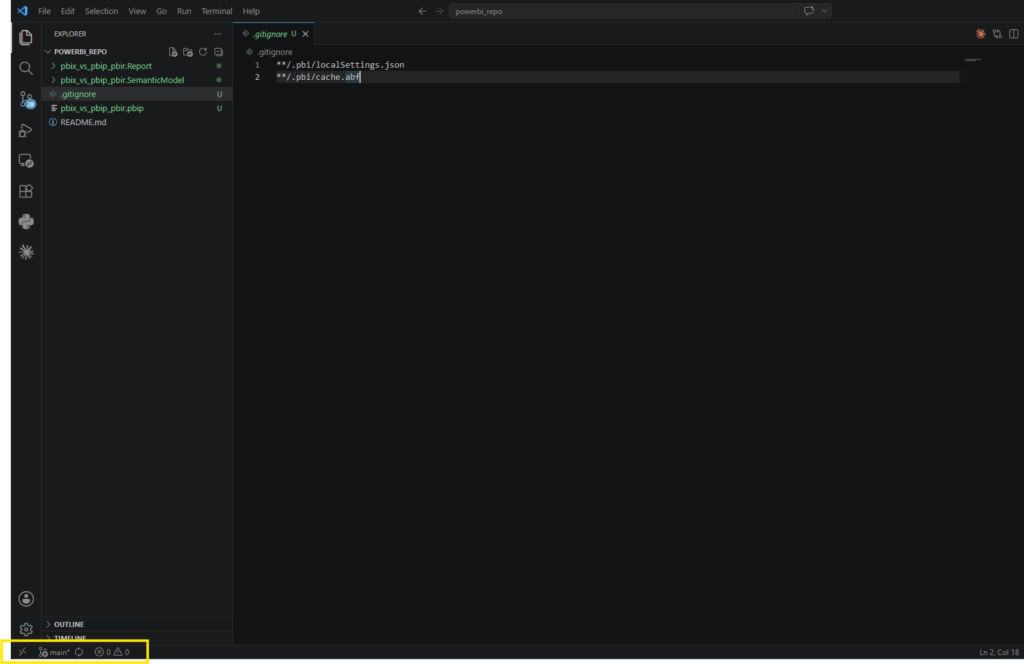
So far we’ve set up our repo, have created our Power BI project and added it to the repository folder, stored locally on our machine. What’s next? Next we will push our new report to the GitHub. On the screenshot above you see that by default I was in the “main” branch of the repo. We can work on main branch, but that’s not what I and other developers will recommend you to do. “Main” branch should be treated as a production one, which should always contain the working version of your code. If you push on main something, what is not fully validated or tested, that can cause troubles.
When you work on something: a task, a prototype, just quickfix – you always need to create a branch. To do so, in the VS code on the left side ribbon (you are already familiar with it), you need to select third option – “Source Control”. This is where you see all the changes you’ve made and do many other stuff. For now we are interested in creating a new branch. Click on 3 dots -> Branch -> Create a new Branch -> Provide a name of the branch. Try to make it straightforward, for example bugfix_bug_with_card_visual or feature_new_slicer_for_sales. Basically something, what is easy to track.
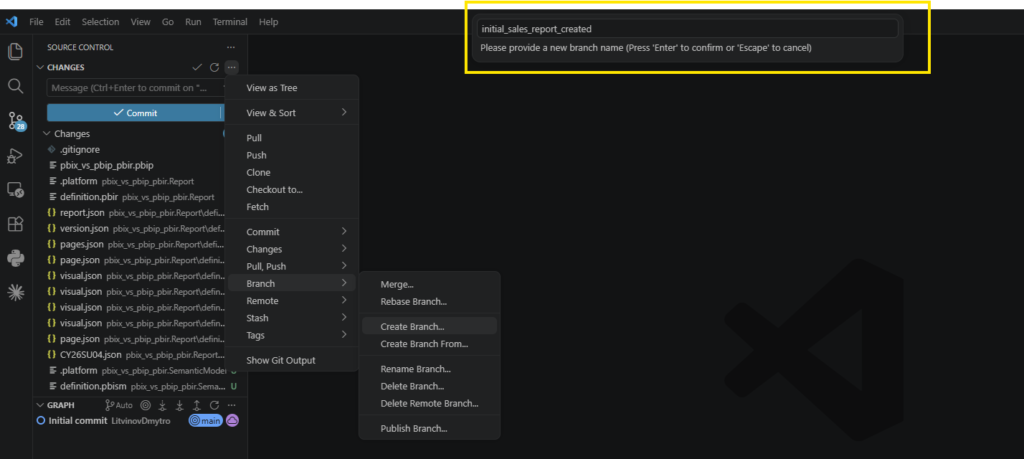
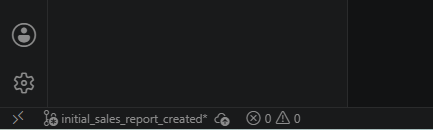
Once you enter the branch name and click enter, you will see that “main” branch has changed to the one you’ve just created.
Next step is to stage and commit the changes we want to push forward. In my case I want to push everything to GitHub, so I can just click on the blue button “Commit”. Every commit action has to be followed by a commit message – basically you have to specify – what are you commiting. As this is just initial commit with a new Power BI report, I will name it just as I named my branch.
Important Note: branch names could not have spaces, while commit messages can.
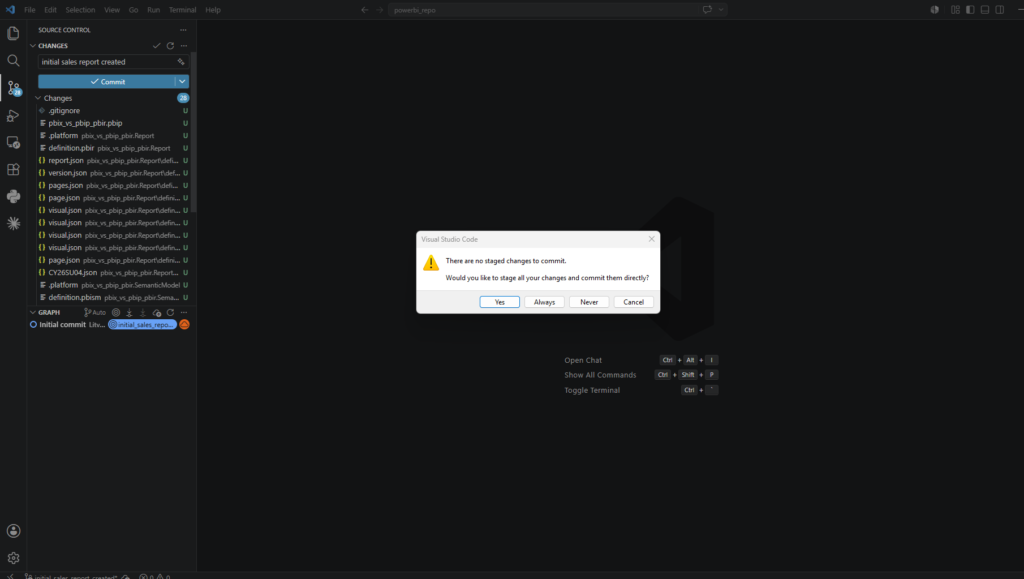
Once you click “Yes”, all your work will be staged, commited and ready to be published to GitHub. Before clicking a publish button, if you work with another developers, I advice you to pull the changes from main, which other developers did. It might happen that you can have conflicts, where your work contradicts with their work. For example you both did change the same measure in DAX and now there is a conflict and you need to decide – which metric logic to keep.
To do so you need to click on that 3 dots which you already used for creating branch, but now we will go to Pull, Push -> Pull from… -> origin/main. In my scenario I don’t need to do it as I know that repo was just created and there is nothing been changed in there, so I click “Publish”
Before changes from your branch are merged with main branch, you need to review them. In a perfect world there should be some senior developer who reviews your changes and a testing team, who tests them before merging with main. In my scenario I will review and merge by myself. So let’s go to GitHub now. Something new has appeared:
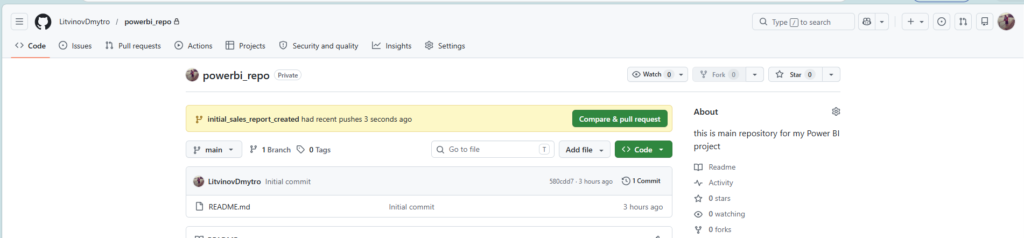
Let’s click on that green “Compare & pull request” and see where it will bring us
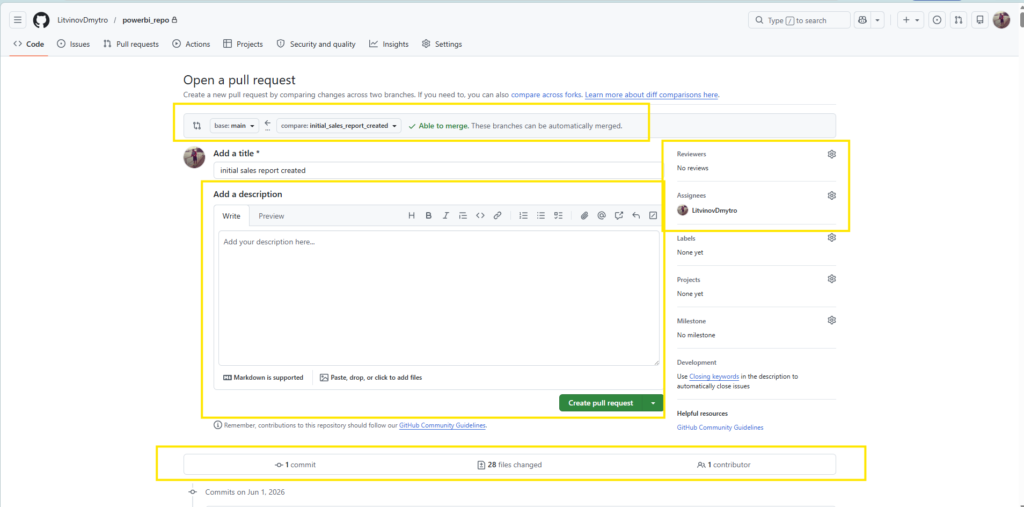
Well, that can be overwhelming for the first sight, but let’s take a closer look what we can find there:
- Description box – free text with description of what you’ve done and how it will affect what you have in production
- On the right you can assign the reviewers and assignees (I’ve assigned myself as I am the one who worked on the report)
- On the top you can see the merge direction, here it says that I want to merge my branch with main branch
- On the bottom you can see all the commits you’ve done in that branch, what files changed, how they changed and who has contributed those changes.
Once you fill everything you need to fill – click to “Create pull request“
Since now other’s can contribute to your pull request – they can comment and review your code changes. The person whom you have assigned as a reviewer will receive a notification to review it.
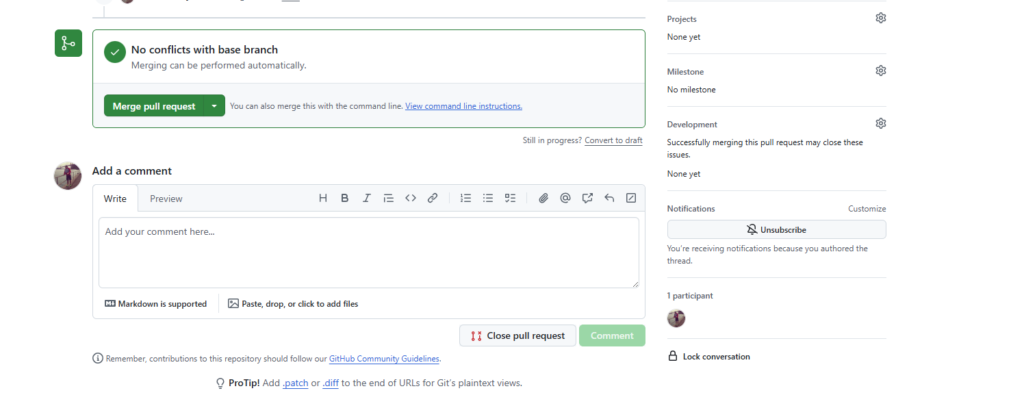
As you see GitHub already shows us that there are no conflicts with the base (main) branch, so once we are confident that all is okay, we can merge pull request. It might take a moment and you should see the final message:

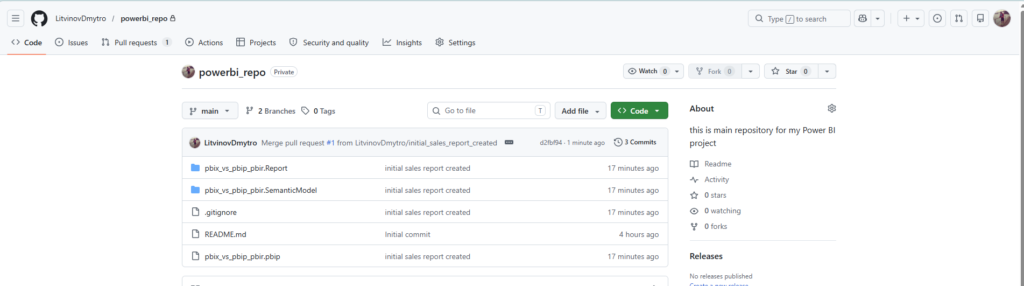
To check that all my changes are in the GitHub main branch now, I can click “Code” in the ribbon and voila, all my work is stored there.
Power BI integration
So we’ve done quite a work already, but what about Power BI? We are going to connect our GitHub repository to our Power BI workspace now. To do so – let’s go to our workspace, where we want to store our semantic mode and a report. Go to Workspace Settings -> Git Integration -> Connect Git Provider and Account.
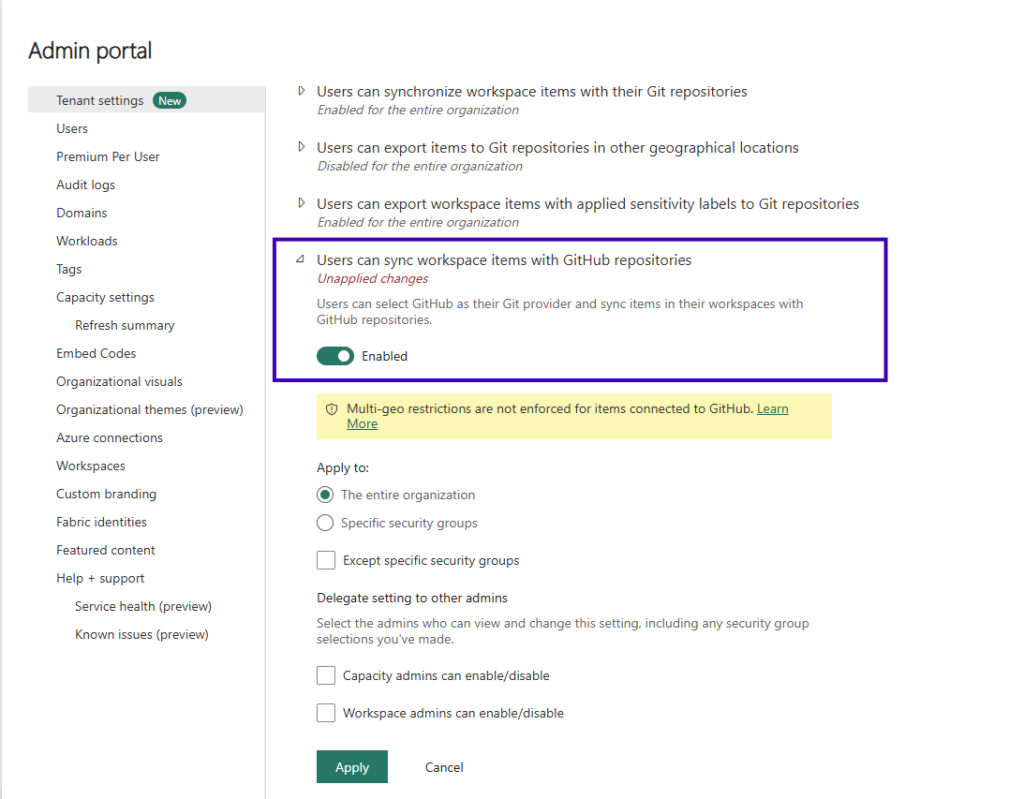
Important Note: by default only Azure DevOps is available, you need to ask your admin to activate GitHub in the admin settings, or just do it by yourself if you are an admin:
In order to connect from Power BI workspace to repo, you will need 3 things:
1. Display Name – that can be just the name of your repo
2. Personal Access Token – you can get it inside GitHub: click on your profile -> Settings -> Developer Settings -> Personal Access Tokens -> Tokens(classic) -> Generate New Token (classic). You will need to confirm your email address and then in the next window with settings, you need to select “repo” only. Additionally you can adjust the token expiration date, by default it’s 30 days.
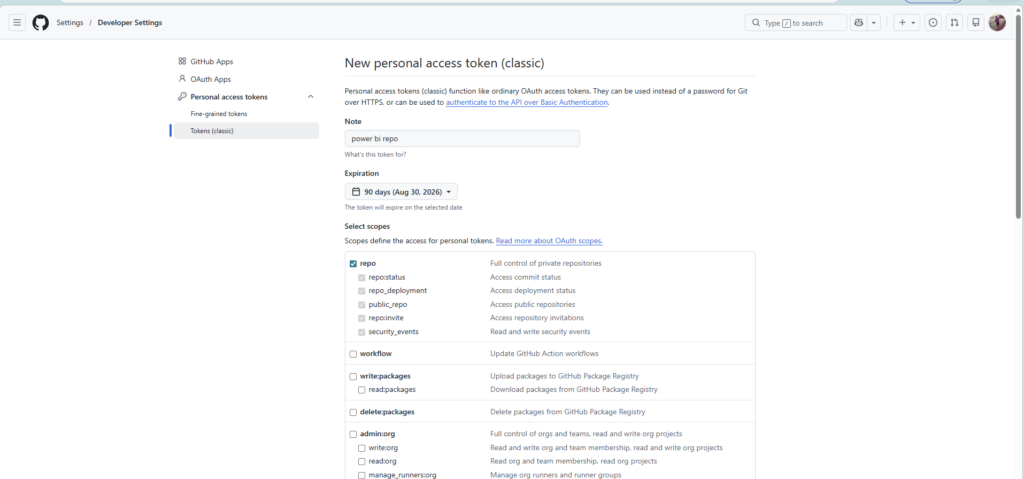
Scroll down and click “Generate Token”. Save it somewhere, as next time you want to access it, you won’t be able to see it and will need to generate a new one.
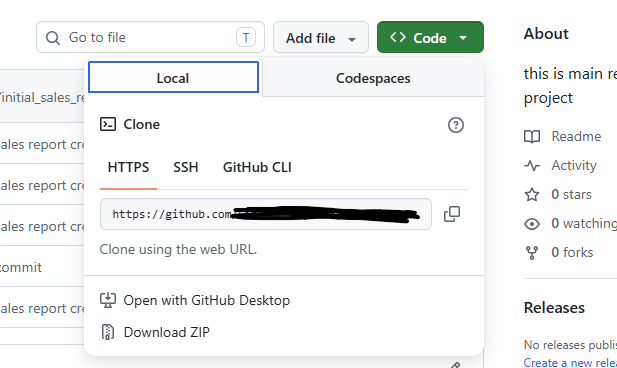
3. Repository URL. To get it, in GitHub go back to the main page of your repository and click on the green button “Code“. That will give you the url to your repository. Copy it and paste to the rest of needed fields inside Power BI Workspace Git Integration settings and click “Connect“
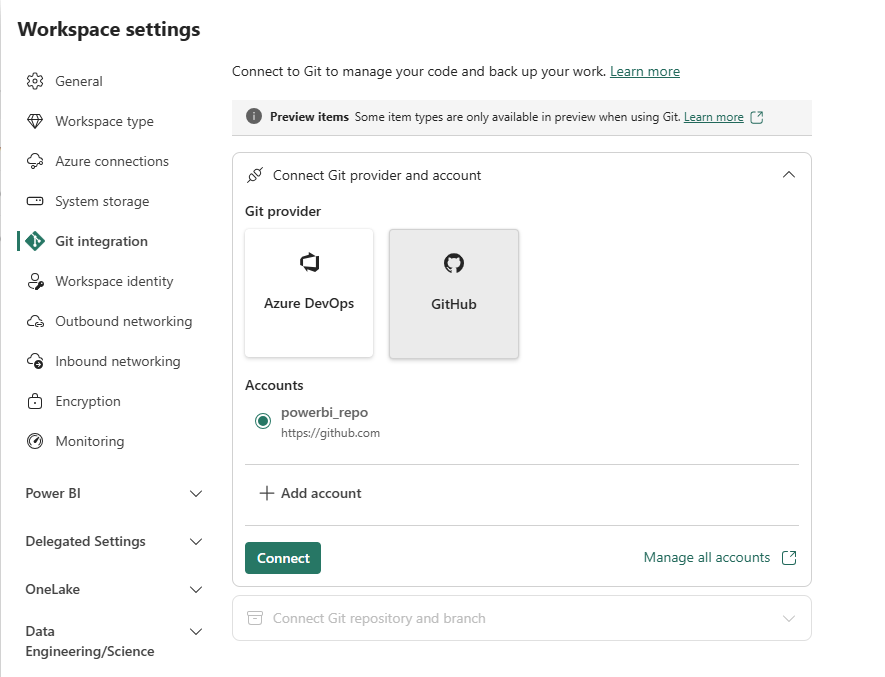
Important Note: after clicking “Connect” you will need to select branch to which you want to connect. Don’t forget to select “main“
In my example I used to have some testing model and report in my workspace, I don’t need them, so in the pop-up window I do select second option – “Sync content from Git into this workspace”. If you already have items in the workspace and you don’t want to lose them – you need to sync your GitHub with Workspace content first.
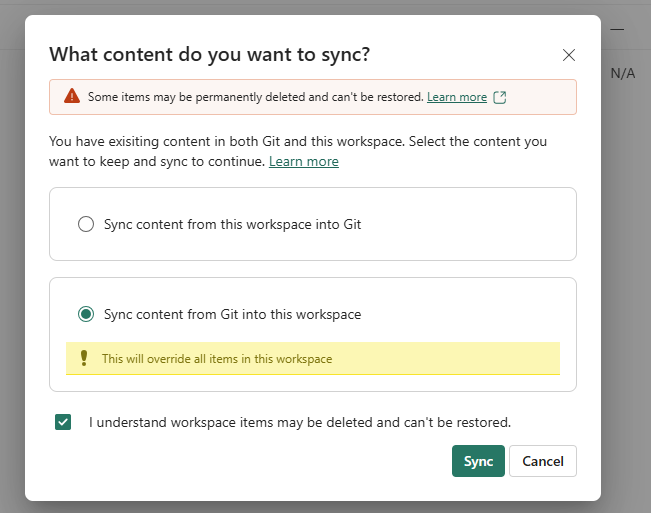
Once the synchronization is completed, you will see that items you’ve added to repo are successfully visible in the workspace.
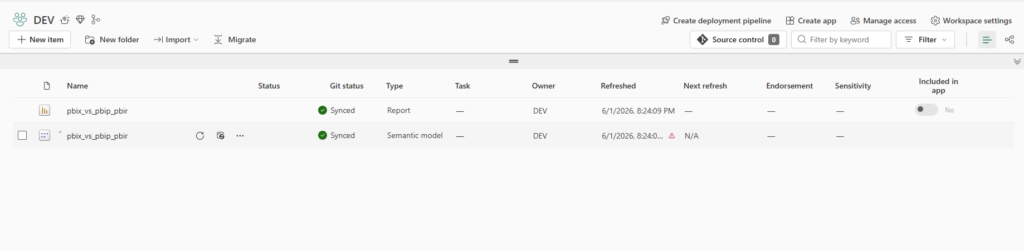
I hope that now you understand how to integrate Git into Power BI and start using source control. If you have any questions – drop a comment below.
BONUS
If you are still here, this is a bonus section. I want to make a small change to my report.
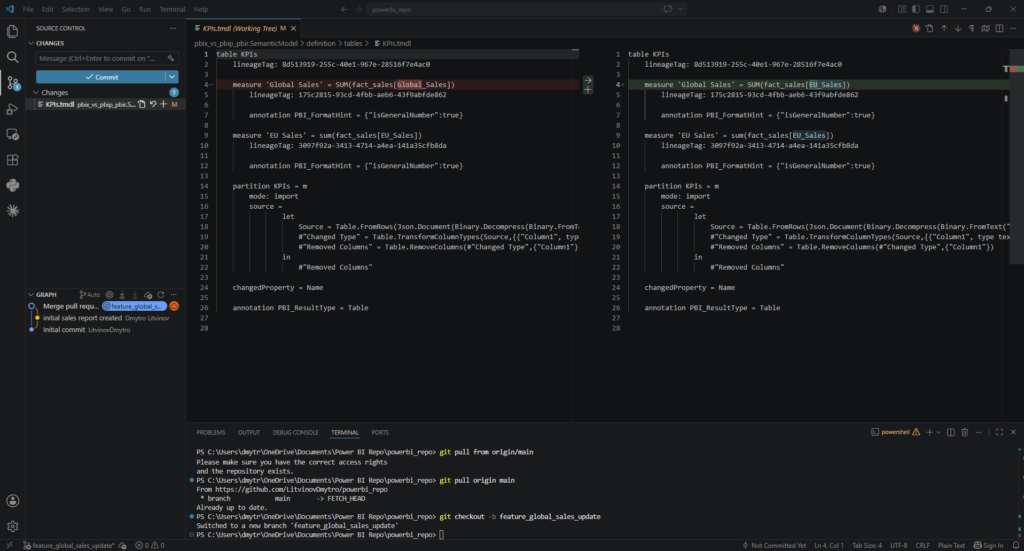
- First thing I need to do is to change my feature branch, which I have already merged with main back to main branch. To do so go back to VS code -> Source Control -> Checkout to -> origin/main
Or you can just open a new Terminal in VS Code (select Git Bash) and write there: git checkout main - Next you need to pull all the changes from main. As originally I was doing changes on branch, they are not reflected in my local main branch. I’ve already written how to do so, or you can write that command in the terminal: git pull origin main
- Now when our main branch is up to date, it’s time to create a new branch. You already know how to do it, or you can type in the terminal: git checkout -b feature_global_sales_update (after -b you can name your new branch whatever you want)
- Do the changes you need inside Power BI or directly in VS Code. As you see the changes now are visible in the code editor.
5. Stage and commit changes and publish to GitHub.
6. Compare and create Pull Request and merge it with main after all the changes are validated and tested.
7. Go to Power BI Service Workspace and click on the Source Control. As you see – changes are already visible there and the only thing you need to do is to click “Update All“
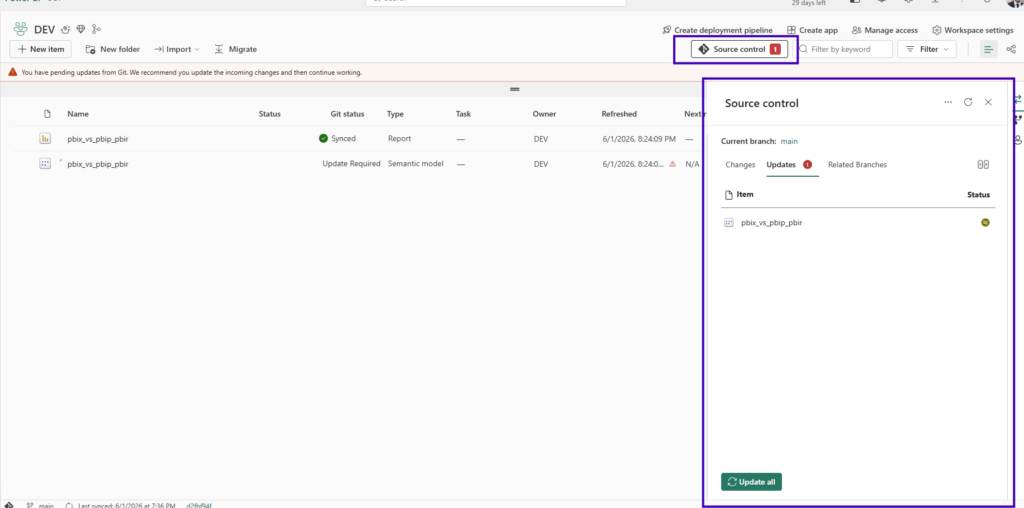
Once update is done – your changes are going to be reflected in the report.
Important note: sometimes your changes will require to recalculate the model or even refresh it completely.
Thank you for reading that really long article and wish you all the best!